
Dark Mode Has Arrived
DNS Check now has a dark mode. It took us a while to get here, but if you've ever been paged for a DNS problem at 2 a.m., you know why it's worth having: the alert fires, you open your laptop, and the monitoring dashboard hits you with a full screen of white.
Choosing a Theme
There's a theme toggle in the top navigation bar now, on every page, signed in or not. Three options:
- System follows whatever your OS is set to. This is the default, so if your machine already switches to dark at night, DNS Check switches with it.
- Light is the original look.
- Dark is the new one.
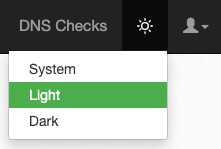
If you're signed in, your choice is saved to your account and follows you to other devices. If you're not, it's stored in your browser's local storage. There's no settings page involved either way: pick an option from the navigation bar, and that's it.
What Got the Dark Treatment
Retrofitting dark mode onto an application this old is more work than inverting a few background colors. Every badge, button, form field, modal, tab, dropdown, and chart has to be checked in both themes. Some of what we went through:
- Application UI. Dashboards, DNS record groups, settings pages, modals, tables, and forms across the signed-in app.
- Notifications and integrations. Separate light and dark logos for Slack, PagerDuty, OpsGenie, Pingdom, Nagios, Splunk On-Call, Jira Service Management, and the rest, so none of them turn into a white box on a dark background.
- Billing. The Stripe Elements payment form is iframed and styled separately, so the card fields needed their own dark styling to match the rest of the page.
- Product tour. The new-account tour reads the active theme instead of assuming light.
- Blog and status page. This blog and the DNS Check status page have the same toggle and share the preference.
Along the way, we pulled the colors into a shared palette, so each color is only defined once.
A Note on Screenshots
Screenshots are mostly light backgrounds, and a bright rectangle in the middle of a dark page is jarring. So when the page is dark, we apply a CSS brightness filter to dim the images. The files themselves are untouched; nothing happens to them in light mode.
Get Started
Dark mode is live everywhere. Click the icon in the top right and pick a preference. Nothing else changes, and your existing notification and monitoring settings stay as they are.
If you're not using DNS Check yet, create a free account and start monitoring your DNS records.