
Service Rebranding:
Splunk On-Call was formerly known as VictorOps. If you previously configured
VictorOps integration with DNS Check, it will continue to work with the new
branding.
DNS Check can send you notifications via Splunk On-Call when DNS records start passing or failing. This page describes how to set up DNS Check/Splunk On-Call integration.
Configure Splunk On-Call
- Log in to your Splunk On-Call account.
- Click the Integrations link in the top navigation bar.
- Search for the DNS Check integration option. It's listed under the Monitoring category.
- Click the Enable Integration button.
- Copy the Splunk On-Call API Key. You'll paste this into DNS Check in the next section.
Configure DNS Check
- Log in to your DNS Check account.
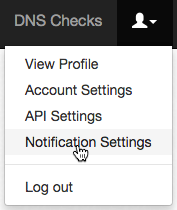
- Click the Account menu in the top-right corner, then click Notification Settings:
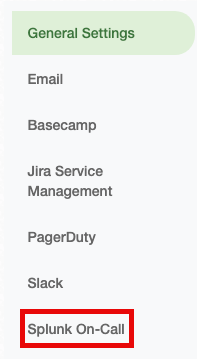
- Click the Splunk On-Call tab:
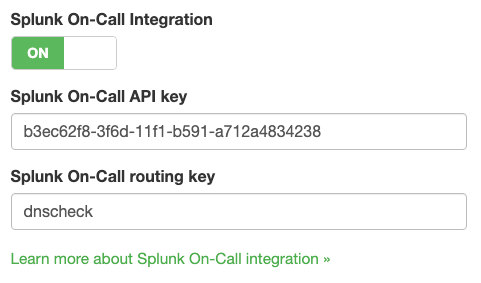
- Enable Splunk On-Call notifications, and paste in the API key that you generated earlier. You may also optionally specify a routing key. The default routing key is "dnscheck". When you're finished, click Save to apply the changes:
Congratulations! You're now finished integrating DNS Check and Splunk On-Call.

Protect your DNS infrastructure with automated monitoring
Get notified immediately when DNS records change. Start monitoring your critical DNS infrastructure for free in under 5 minutes.
No credit card required • Cancel anytime