
Team Members is an Enterprise feature that lets you invite other people to log in and work with your account on your behalf. This feature is useful when multiple people on your team need to view or update DNS records, without sharing a single account.
Roles
Each team member gets their own login credentials and receives one of three roles:
| Role | DNS Records | Account Settings |
|---|---|---|
| Admin | View, create, edit, delete | Full access |
| Manager | View, create, edit, delete | No access |
| Viewer | View only | No access |
Account Settings includes billing, notification settings, integrations, API keys, email recipients, and team member management.
Managing Team Members
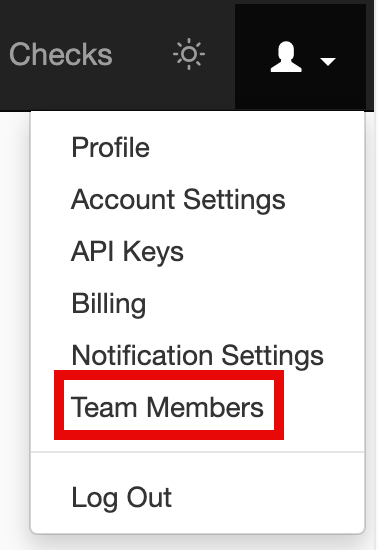
To manage team members, click the Account menu in the top-right corner and select Team Members. Only Enterprise account owners and team members can see this link.
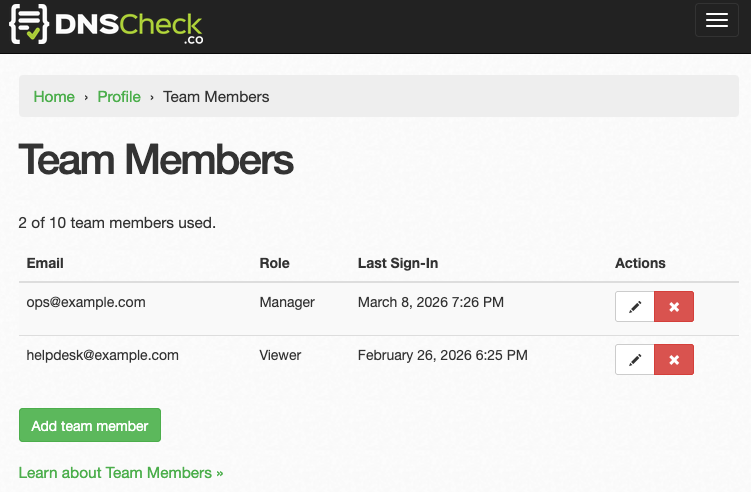
The Team Members page displays all your current team members in a table, along with their roles, last sign-in dates, and action buttons to edit or remove them. A counter at the top shows how many of your available team member slots are in use.
Adding a Team Member
To add a team member:
- Go to the Team Members page.
- Click the Add team member button.
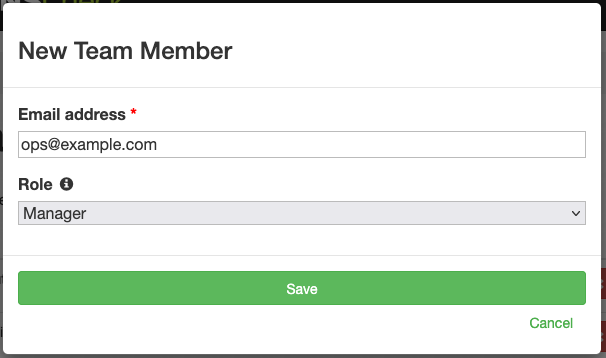
- Enter the team member's email address and select a role.
- Click Save to send the invitation.
The team member will receive an email invitation with a link to set their password. Once they set their password, they can log in and start working with your DNS record groups.
Each team member must use a unique email address that does not already belong to a DNS Check account.
Editing a Team Member's Role
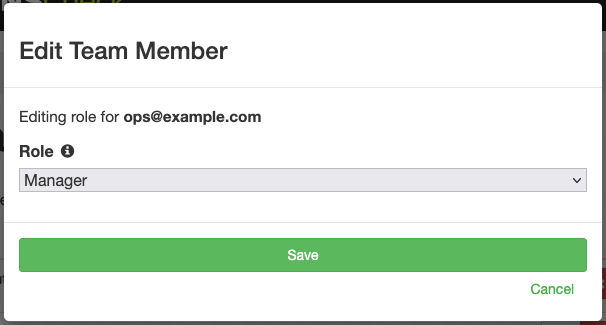
To change a team member's role, click the pencil icon on their row on the Team Members page. Select the new role and click Save.
Removing a Team Member
To remove a team member, click the red remove button on their row. A confirmation dialog appears before DNS Check removes the team member.
Team Member Limits
The number of team members you can add depends on your plan:
| Plan | Team Members |
|---|---|
| Basic | Not available |
| Professional | Not available |
| Enterprise | Up to 10 |
| Enterprise x2 | Up to 20 |
| Enterprise x3 | Up to 30 |
See our Pricing page for plan details.
If you need more than 30 team members, contact us for a custom plan.
What Team Members See
Admin team members see the same interface as the account owner and can access all account-level settings. The only difference is that the account settings page (email and password) manages the admin team member's own credentials, not the account owner's.
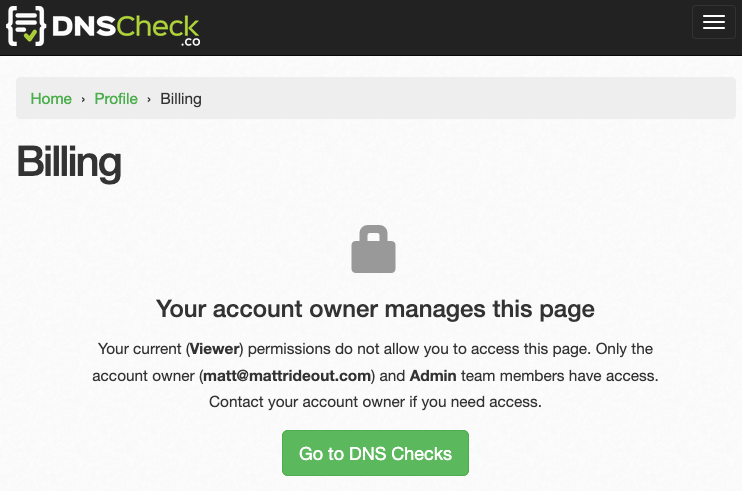
Manager and Viewer team members see mostly the same interface as the account owner, with two notable exceptions:
- They cannot access account-level configuration pages, such as the Billing and API Keys pages. If they try to navigate to a restricted page, they see a message like this:
- Viewer team members do not see the options to create, edit, or delete DNS records or DNS record groups.

Protect your DNS infrastructure with automated monitoring
Get notified immediately when DNS records change. Start monitoring your critical DNS infrastructure for free in under 5 minutes.
No credit card required • Cancel anytime