
Monitor Load Balanced DNS Records with CIDR Ranges
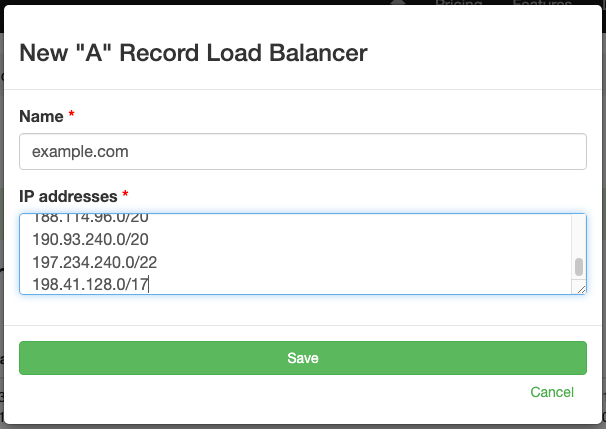
DNS Check's load balancer monitoring now supports CIDR notation, making it practical to monitor domains served by CDNs and cloud providers that use large IP pools. Instead of listing every possible IP address a provider might return, you can enter CIDR ranges like 104.16.0.0/13 and DNS Check will verify that responses fall within those ranges.
How Load Balancer Monitoring Works
Before diving into the CIDR improvements, here's a quick overview of how DNS Check monitors load-balanced records.
Many DNS configurations return multiple IP addresses for a single domain name. This is DNS-based load balancing: traffic is distributed across servers for performance, redundancy, or geographic routing. When you query a load-balanced domain, you might get back one, some, or all of its configured addresses, often in a different order each time.
DNS Check handles this by letting you enter the full set of valid IP addresses or hostnames for a load-balanced record. Each time the record is checked, DNS Check compares the response to your list. If every returned address appears in your list, the check passes. If any returned address isn't in the list, the check fails. The order doesn't matter, and partial responses (a subset of your list) are fine.
This approach works well for load balancers with a small, fixed set of IPs. But some providers rotate responses across hundreds or thousands of addresses, which is where CIDR support comes in.
CIDR Range Monitoring
Providers like Cloudflare, Fastly, and other CDNs serve content from large IP pools. A Cloudflare-proxied domain might resolve to any address within several /13 or /20 ranges. Listing individual IPs would be impractical and fragile, as providers regularly add and rotate addresses within their published ranges.
With CIDR support, you can enter ranges like 104.16.0.0/13 directly in the "IP addresses" field. DNS Check then verifies that each IP returned in a DNS response falls within one of the specified CIDR ranges. This works for both IPv4 (A record) and IPv6 (AAAA record) load balancers.
For example, Cloudflare publishes its IP ranges. You can enter these ranges as load balancer addresses in DNS Check to monitor any Cloudflare-proxied domain. If a DNS query returns 104.21.35.12, DNS Check confirms that the address falls within 104.16.0.0/13 and the check passes. If a query returns an IP outside all specified ranges, the check fails and you're notified, which could indicate a DNS hijack, misconfiguration, or an unexpected provider change.
You can also mix individual IP addresses and CIDR ranges in the same load balancer. Each entry, whether a single IP or a CIDR range, counts as one of the 30 allowed entries per load balancer.
Paste IP Lists Directly
To make setup even faster, the "IP addresses" field now accepts newline-delimited input in addition to comma-separated values. This means you can copy a list of IP ranges from a provider's website and paste it directly into DNS Check without reformatting.
For example, visiting cloudflare.com/ips and copying the IPv4 ranges gives you a newline-separated list. Paste it into the "IP addresses" field as-is, and DNS Check converts the newlines to commas when the record is saved. The field is now a multi-line text area to support this workflow.
Getting Started
Load balancer monitoring with CIDR support is available now for all paid DNS Check accounts. To set up a CIDR-based load balancer check:
- Navigate to your DNS record group and click "Add DNS record"
- Select a load balancer type from the dropdown (e.g., "A record balancer" or "AAAA record balancer")
- Enter the domain name you want to monitor in the "Name" field
- Enter your CIDR ranges in the "IP addresses" field, separated by commas or newlines
- Save the record
The screenshot at the top of this post shows an example of this form with Cloudflare's IPv4 CIDR ranges entered as addresses.
DNS Check immediately begins monitoring. If any DNS response returns an address outside your specified ranges, you'll be notified through your configured notification channels: email, Slack, PagerDuty, webhooks, and more.
For complete documentation on load balancer monitoring, visit our Monitoring Load Balancer DNS Records page.