
New Features: Team Members and Additional Email Recipients
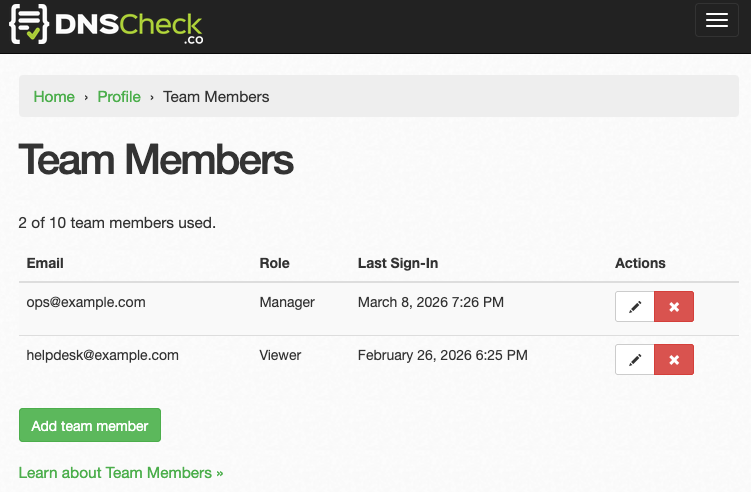
DNS Check now supports two features for Enterprise accounts that make it easier to work as a team: Team Members and Additional Email Recipients. Team Members lets multiple people log in and work with your DNS records using their own credentials. Additional Email Recipients sends notification emails to people who need to stay informed but don't need to log in.
Team Members
The Team Members feature lets you invite other people to log in and work with your DNS Check account. Each team member gets their own email and password, so there's no need to share a single set of credentials. This is useful when multiple people on your team need to view, create, or manage DNS records.
Roles
Each team member has one of three roles to control what they can access:
| Role | DNS Records | Account Settings |
|---|---|---|
| Admin | View, create, edit, delete | Full access |
| Manager | View, create, edit, delete | No access |
| Viewer | View only | No access |
Admin team members see the same interface as the account owner and can access all account-level settings, including billing, notification configuration, integrations, and API keys. Manager team members can manage DNS records, but can't access account settings. Viewer team members can only view DNS records and their status, which is useful for stakeholders who need visibility without the ability to make changes.
Adding Team Members
To add a team member, click the user icon in the top navigation bar and select Team Members. From there, click Add team member, enter their email address, and select a role.
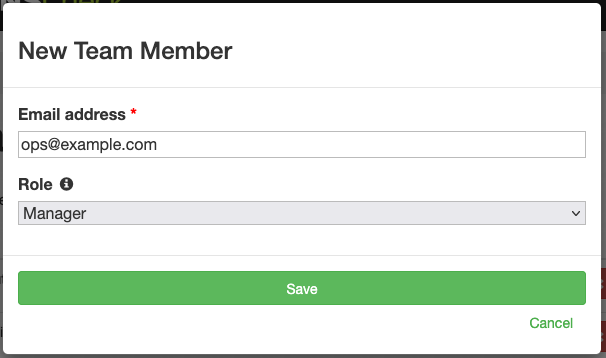
The team member receives an email invitation with a link to set their password. Once they set their password, they can log in and start working with your DNS records. You can change a team member's role or remove them from the Team Members page.
The number of team members you can add depends on your Enterprise plan tier.
Additional Email Recipients
The Additional Email Recipients feature lets you send DNS Check notification emails to additional email addresses beyond your primary account email. This is designed for people or services that need to receive alerts about DNS record changes but don't need to log in to DNS Check.
Setting Up Recipients
To add a recipient, go to the Email tab on your Notification Settings page, find the Additional Email Recipients section, and click the Add email recipient button.
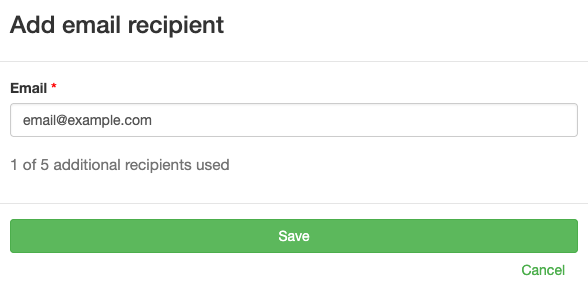
The recipient receives a confirmation email and must click the confirmation link before they start receiving notifications. This confirmation step prevents unwanted emails from being sent to addresses that didn't opt in.
Managing Recipients
Once added, you can manage recipients from the Notification Settings page:
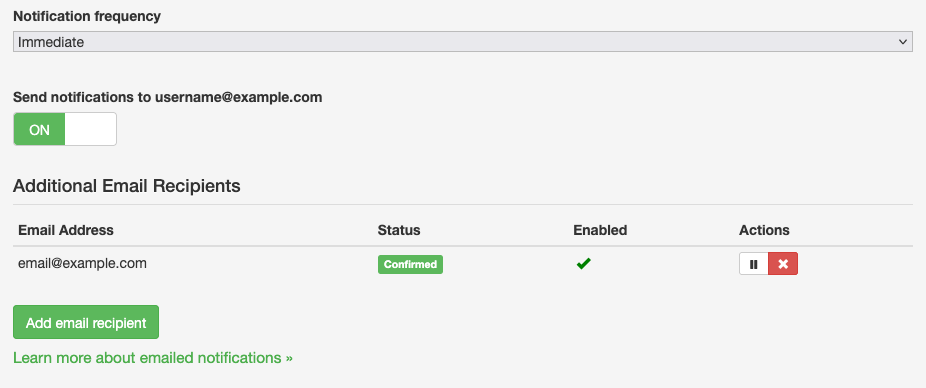
For each recipient, you can:
- Resend confirmation if the recipient didn't receive the confirmation email
- Enable/Disable to temporarily pause notifications without removing the recipient
- Delete the recipient
Recipients can also unsubscribe themselves using the unsubscribe link included in every notification email.
You can turn notifications to your primary account email address on and off by toggling the Send notifications to control on the Email tab of your Notification Settings.
When to Use Each Feature
These two features serve different needs:
-
Team Members is for people who need to log in to DNS Check, whether to view DNS record status, create new records, or manage account settings. Each team member has their own credentials and a defined level of access.
-
Additional Email Recipients is for people who need to receive notification emails, such as an on-call distribution list, a manager who wants to stay informed, or a ticketing system that ingests emails.
You can use both features together. For example, you might add your software developers and sysadmins as team members with the Manager role so they can create and edit records, add cyber security team members with the Viewer role so they can check status without making changes, and add an ops mailing list as an additional email recipient so the broader team gets notified about DNS issues.
Get Started
Team Members and Additional Email Recipients are available now for all Enterprise accounts. To start using them, log in and visit the Team Members page and your Notification Settings.
If you're not yet using DNS Check, create a free account to start monitoring your DNS records. Free accounts can monitor up to 10 DNS records with email notifications. To unlock Team Members, Additional Email Recipients, and other Enterprise features, visit our Features page to find the right plan for your team.