
Webhooks: Trigger Your Own Automation When a DNS Record Changes
DNS Check can now send a signed HTTPS request to any URL you choose whenever a monitored DNS record starts failing or starts passing again. If you've ever copied the details out of a DNS Check alert email into a ticket or a script, a webhook can do that step for you.
Why Webhooks
DNS Check already tells people when a DNS record changes via email, Slack, PagerDuty, Opsgenie, and other integrations. Those are the right tools when a human needs to investigate a problem, but sometimes what happens after a DNS change can be automated.
Webhooks hand that part to your code. Each delivery is a JSON document that says what happened, to which DNS record, in which record group, and why the check failed, which is enough for your code to decide what to do next.
What a Delivery Looks Like
There are two events: dns_record.failing, sent when a record starts failing, and dns_record.passing, sent when it starts passing again. By default, each one arrives in the Envelope format:
{
  "id": "evt_4f1c9a2e7b3d4c6f8a0e5b2d9c7f1a3e",
  "type": "dns_record.failing",
  "timestamp": "2026-09-15T14:05:07Z",
  "text": "The example.com A record in the \"Web server\" record group is failing: https://www.dnscheck.co/tests/3f6b2c1e-8d4a-4b7e-9c2f-5a1d7e0b6c93/5529",
  "data": {
    "record": {
      "id": 5529,
      "name": "example.com.",
      "record_type": "A",
      "value": "192.0.2.10",
      "status": "fail",
      "error": "Expected:\nexample.com. A 192.0.2.10\n\nFound:\nexample.com. A 198.51.100.7",
      "responding_name_server": "198.51.100.53 (ns1.example.net)",
      "url": "https://www.dnscheck.co/tests/3f6b2c1e-8d4a-4b7e-9c2f-5a1d7e0b6c93/5529",
      "history_url": "https://www.dnscheck.co/tests/3f6b2c1e-8d4a-4b7e-9c2f-5a1d7e0b6c93/5529/history"
    },
    "group": {
      "uuid": "3f6b2c1e-8d4a-4b7e-9c2f-5a1d7e0b6c93",
      "name": "Web server",
      "url": "https://www.dnscheck.co/tests/3f6b2c1e-8d4a-4b7e-9c2f-5a1d7e0b6c93"
    }
  }
}
The error field carries what the record was expected to be and what was actually found, and responding_name_server says which name server gave that answer. The Envelope reference describes every field.
Delivery and Security
Every delivery is signed using the Standard Webhooks specification, so your endpoint can check that it came from DNS Check before acting on it. If your endpoint is down or returns an error, we retry for up to 24 hours. Each retry carries the same event ID so you can skip ones you've already processed.
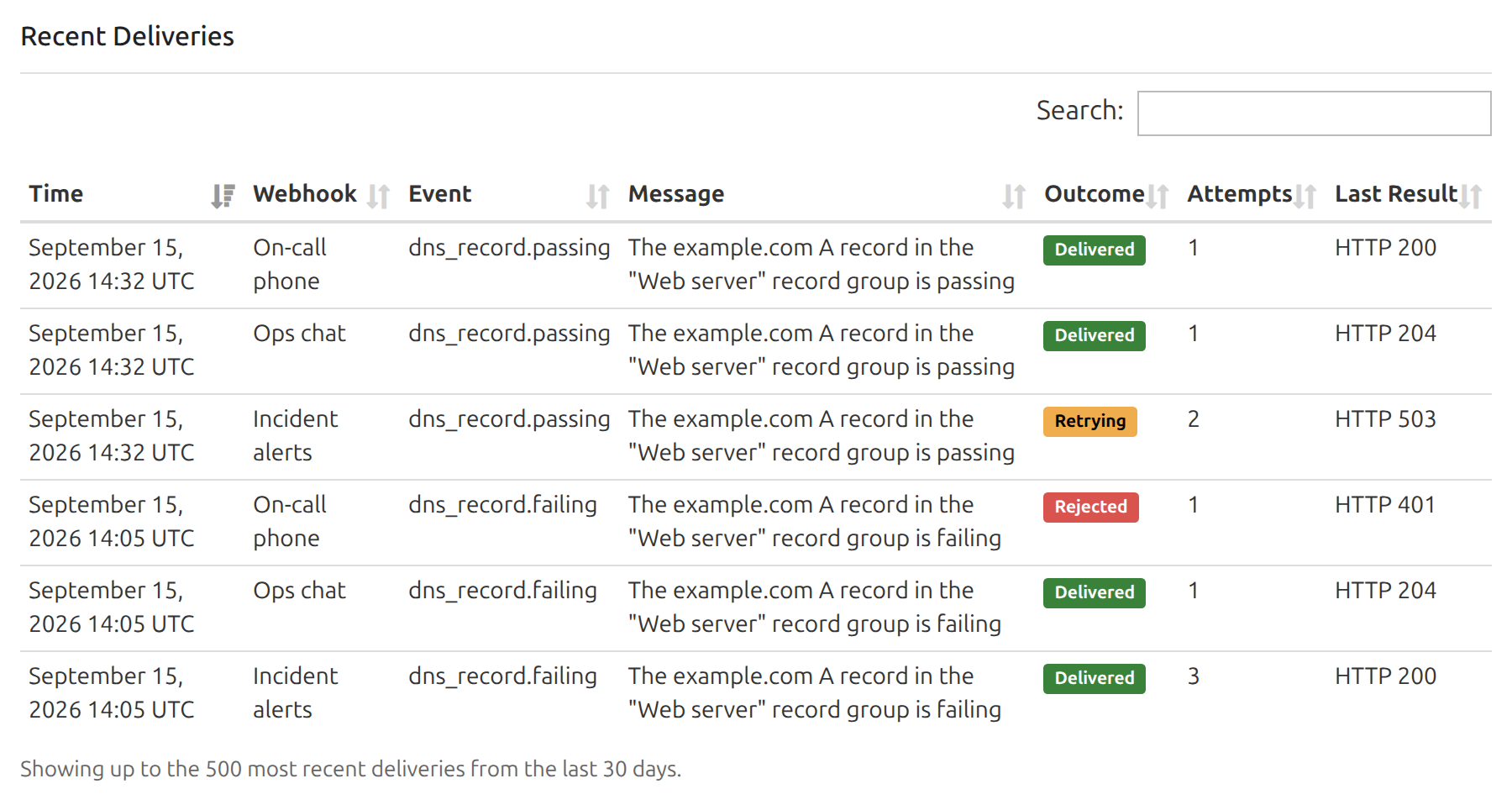
To check that your endpoint works before a real DNS change comes through, you can send it a sample event from the Webhooks tab. The same tab shows each recent delivery's outcome and what your endpoint returned. If deliveries to a webhook keep failing, we'll email you.
Ideas for Acting on a DNS Change
Open a Ticket or an Incident
Point a webhook at your own endpoint, or at an automation tool, and create a ticket from each dns_record.failing event, with the record's name, the error text, and a link to its History page already filled in. When the matching dns_record.passing event arrives, add a comment or close the ticket.
Wait for a DNS Change to Go Live, Then Continue
Some work can't start until a DNS change is visible to the rest of the Internet: switching traffic to a new load balancer, finishing a mail migration once the new MX records are live, or retrying a domain validation step.
Add a monitor for the new value before you publish it. Its first check fails, since the record doesn't match yet, and the dns_record.passing event that follows tells you the new value is being served. Your endpoint can ignore the failing event and continue the migration when the passing one arrives.
Catch DNS Records That Shouldn't Exist
With an inverted check, a monitor fails when a record appears, for example, a wildcard record you never meant to publish, or a subdomain that should stay unresolvable. Send those events to your security tooling to get an alert with the record's name and value.
Send Alerts to Chat and Push Apps
Not every webhook needs custom code. Two other payload formats make DNS Check work with apps that only accept a message:
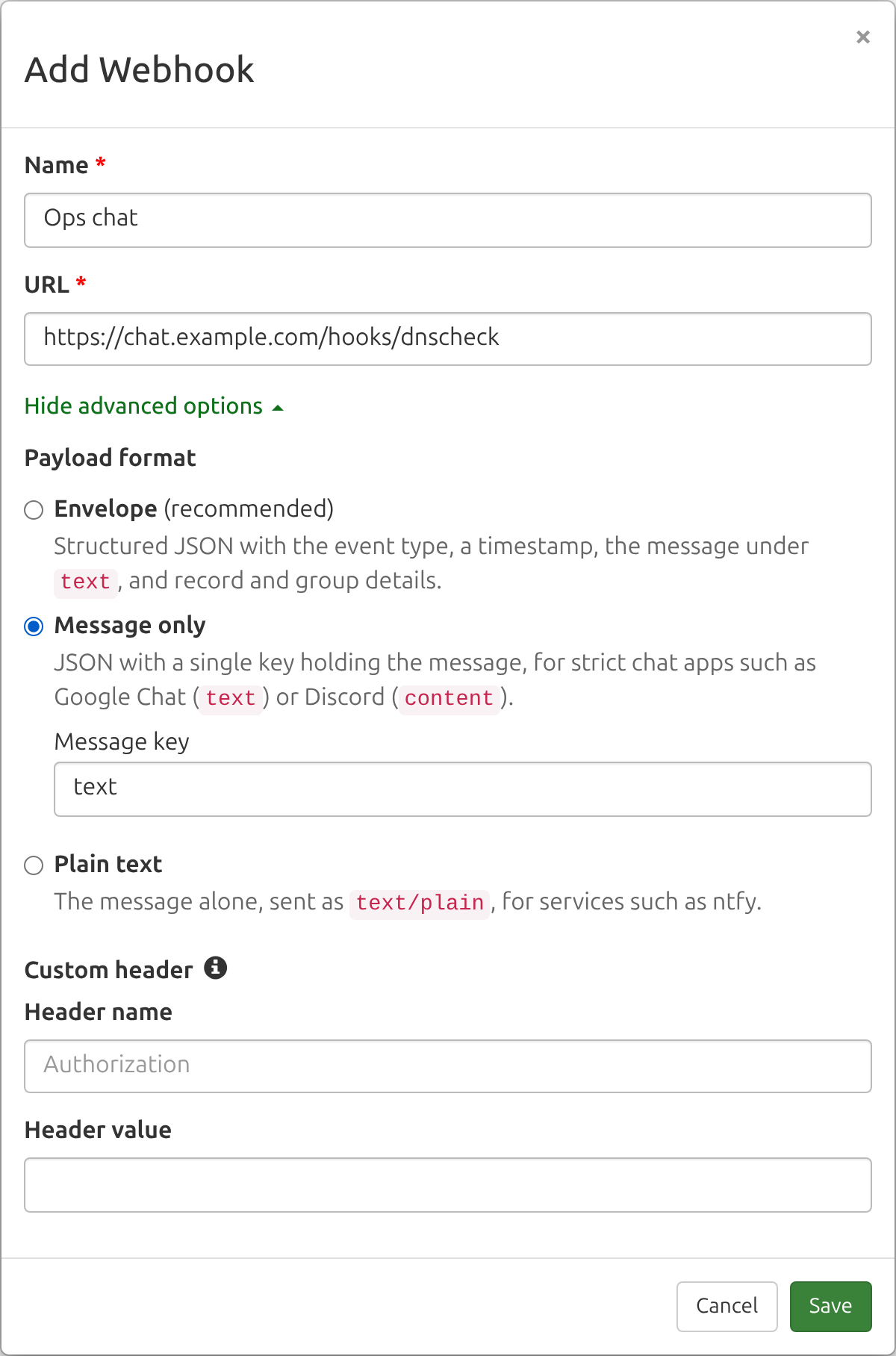
- Message only sends JSON with a single key holding the message, for chat apps that expect the message under a specific key, such as Discord, Google Chat, Mattermost, and Rocket.Chat.
- Plain text sends the message alone, for push notification services such as ntfy, which sends DNS alerts to your phone.
You can also set a custom header for endpoints that expect a bearer token, an API key, or HTTP Basic authentication.
Connect an Automation Tool
Zapier, Make, n8n, and IFTTT can all start a workflow from a webhook, and they read the Envelope format's fields directly, so you can add a row to a spreadsheet, create a task in your project tracker, or send an SMS without writing any code.
A Minimal Endpoint
Here is a complete endpoint in Python, using Flask and the standardwebhooks package. It rejects anything without a valid signature, skips duplicate deliveries, and hands each failing event to a function of your own:
import os

from flask import Flask, request
from standardwebhooks import Webhook, WebhookVerificationError

app = Flask(__name__)
webhook = Webhook(os.environ["DNSCHECK_SIGNING_SECRET"])
seen_event_ids = set()  # In production, keep these in your database

@app.post("/dnscheck/webhook")
def dnscheck_webhook():
    try:
        event = webhook.verify(request.get_data(), request.headers)
    except WebhookVerificationError:
        return "Invalid signature", 400

    if event["id"] in seen_event_ids:
        return "", 204
    seen_event_ids.add(event["id"])

    if event["type"] == "dns_record.failing":
        open_ticket(event["data"]["record"], event["text"])

    return "", 204
The Verify Webhook Signatures page shows more examples, including how to check a signature without a library.
Set Up a Webhook
- Click the Account menu in the top-right corner, then click Notification Settings.
- Click the Webhooks tab, then click Add webhook.
- Enter a name and the HTTPS URL that should receive deliveries. Click Show advanced options to choose a different payload format or add a custom header.
- Click Save, then copy the signing secret into your endpoint.
- Choose Send test event from the webhook's actions menu, and check the result under Recent Deliveries.
Events are sent for every record group whose notifications are turned on, following the same rules as your other notifications. The webhooks documentation has more details, including request headers, retries, delivery ordering, and the IP addresses deliveries come from.
Get Started
Webhooks are available now on every Enterprise plan. If you're already on one, head to the Webhooks tab to add your first webhook. If you'd like to use them on a Basic or Professional account, see the Features page to compare plans, or contact us with any questions.
New to DNS Check? Create a free account to start monitoring your DNS records.