
A webhook sends a notification to a URL you choose whenever a monitored DNS record starts passing or failing. Each of those changes is an event, either dns_record.failing or dns_record.passing, and we send it to each of your enabled webhooks as a delivery. Each delivery is a signed HTTPS request to the webhook's URL, so your own services, automation tools, and chat or push notification apps can act on DNS changes as they happen.
Each delivery carries a stable event ID and a Standard Webhooks signature. You can send a structured JSON payload, a single-key JSON payload for chat apps such as Discord and Google Chat, or a plain text payload for push notification services such as ntfy.
- Sending to a chat, push, or automation app? Add a webhook, then follow the steps for your chat or push app or automation tool.
- Building your own endpoint? Use the Envelope format, verify signatures, respond quickly, and skip duplicates by their
webhook-id.
Plans and Limits
The number of webhooks you can add depends on your plan:
| Plan | Webhooks |
|---|---|
| Basic | Not available |
| Professional | Not available |
| Enterprise | Up to 5 |
| Enterprise x2 | Up to 10 |
| Enterprise x3 | Up to 15 |
See our Pricing page for plan details.
The account holder and team members with the Admin role can add and manage webhooks.
Set Up a Webhook
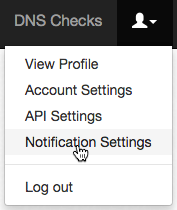
- Click the Account menu in the top-right corner, then click Notification Settings:
- Click the Webhooks tab, then click Add webhook.
- Enter a Name and the URL that should receive deliveries, then click Save:
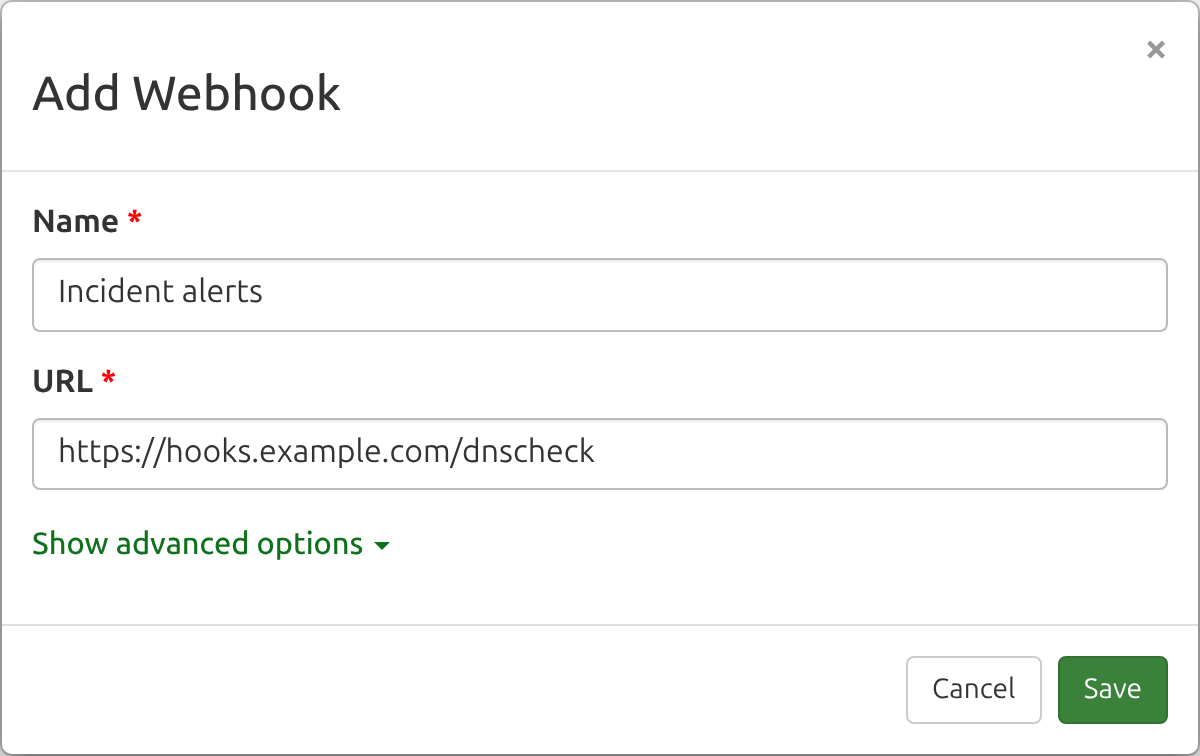
The URL must start with https:// and include a full hostname, such as https://hooks.example.com/dnscheck. It can include a query string (the part starting with ?), but it can't contain a username and password (use a custom header instead), or a fragment (the part starting with #).
By default, a webhook sends the Envelope payload and no custom header. Click Show advanced options to choose a different payload format or to add a custom header.
After you save, we show the webhook's Signing secret, hidden until you click Show. Click Copy to copy it into your endpoint so it can verify that each delivery came from DNS Check. You can return to it anytime by editing the webhook.

Your webhooks are listed on the Webhooks tab, with each one's name, host, payload format, and whether it's enabled:
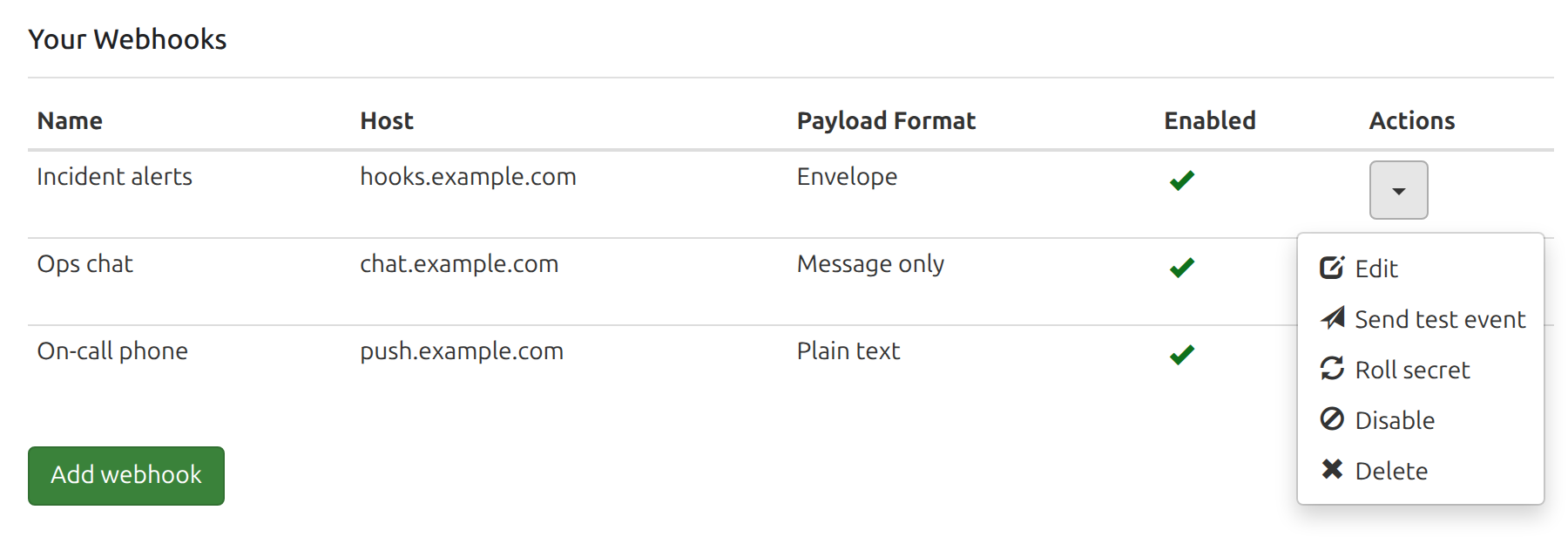
Each row's drop-down menu has these actions:
- Edit changes the webhook's settings and shows its signing secret.
- Send test event sends the webhook a sample event, so you can check that your endpoint works. See Send a Test Event.
- Roll secret replaces the webhook's signing secret and shows you the new one. See Roll the Signing Secret.
- Disable stops deliveries to the webhook, including any already waiting to be retried. Events that happen while it's disabled are never sent, not even after you enable it again. The menu item then becomes Enable, which starts deliveries again with the next event.
- Delete removes the webhook and stops its pending deliveries.
Send a Test Event
To check that your endpoint works, click the webhook's drop-down menu on the Webhooks tab, then select Send test event. We send the webhook a dns_record.failing event with sample data, so your endpoint's handling for failing records runs just as it would for a real event. To keep it from being mistaken for a real failure:
- It carries an
X-DNSCheck-Test: trueheader. - Its message starts with "This is a test from DNS Check."
- Its record is a sample:
www.example.com.with the record ID0and the record group ID00000000-0000-0000-0000-000000000000, neither of which is ever a real ID - Its links, in the message and in the envelope's
urlandhistory_urlfields, point to this section of the docs rather than to a real record.
Reload the page after a few seconds to see the test's result under Recent Deliveries, where it's marked Test:
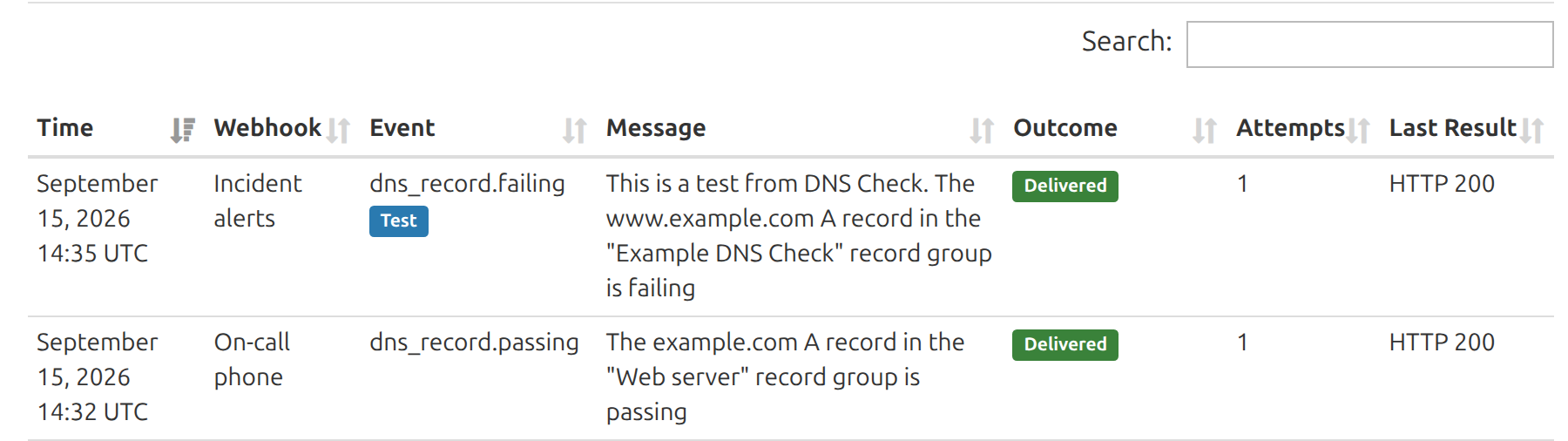
A test is sent once and isn't retried, so fix the problem the last result points to, then send another. The option is hidden while a webhook is disabled.
When Events Are Sent
We send an event to each enabled webhook when a monitored DNS record starts failing, and another when it starts passing again. While a record keeps failing, we don't send more events for its later checks.
Webhooks follow the same rules as your other notifications. No event is sent:
- When a newly created record passes its first check
- For a record in a group whose notifications are turned off
- For a ServFail error that hasn't yet reached your ServFail notification threshold, or when the record passes again after one
So events don't always come in pairs. For example, if a record fails while its group's notifications are off, and passes after they're turned back on, you receive a passing event without a failing one before it. Treat each event as the record's current state, not as a change from the last event you received.
We send each event as soon as we detect the state change.
Chat and Push Notification Apps
For Slack, use DNS Check's Slack integration instead, which is available on every plan.
The apps below aren't part of DNS Check, and they can change how they accept webhooks at any time. If these instructions become stale, let us know.
Discord
- In Discord, open the channel's settings (Edit Channel), click Integrations, then Create Webhook.
- Give the Webhook a name, select a channeloo, then click Copy Webhook URL. It looks like
https://discord.com/api/webhooks/1234567890/abcdEFGH.... - In DNS Check, add a webhook with that URL. Under Show advanced options, choose Message only and set the Message key to
content.
Discord rejects a payload without a content field, so the Envelope and the default text key won't work.
Google Chat
- In Google Chat, open the space, click the space's name, then click Apps & integrations.
- Click Add webhooks, name the webhook, save it, and copy its URL. It looks like
https://chat.googleapis.com/v1/spaces/AAAA.../messages?key=...&token=.... - In DNS Check, add a webhook with that URL. Under Show advanced options, choose Message only and leave the Message key set to
text.
Google Chat rejects fields it doesn't recognize, so the Envelope format won't work. Incoming webhooks are available in Google Workspace accounts, and your Workspace administrator may need to allow them.
Mattermost and Rocket.Chat
- In Mattermost or Rocket.Chat, create an incoming webhook for the channel, and copy its URL.
- In DNS Check, add a webhook with that URL. Under Show advanced options, choose Message only and leave the Message key set to
text.
Mattermost reads the Envelope's type field as its own message type and rejects the delivery, so the Envelope won't work there.
ntfy
ntfy sends push notifications to your phone or desktop for anything posted to a topic URL.
- Pick a topic name that's hard to guess, and subscribe to it in the ntfy app. Anyone who knows a topic's name on ntfy.sh can read its messages.
- In DNS Check, add a webhook with the topic's URL, such as
https://ntfy.sh/dnscheck-7f3a9c2e. Under Show advanced options, choose Plain text. - If the topic requires an access token, set the custom header's name to
Authorizationand its value toBearerfollowed by a space and the token.
Use Plain text rather than JSON because ntfy shows a JSON payload as-is.
Automation Tools
Automation tools can start a workflow from a webhook. The tools below give you a URL to paste into DNS Check and can read the default Envelope format, so you can use its fields, such as type and data.record.name, in later steps. To give the tool a sample to work from, send a test event once the URL is in place:
- Zapier: start a Zap with the Webhooks by Zapier app's Catch Hook trigger. Its URL starts with
https://hooks.zapier.com/hooks/catch/. Webhooks by Zapier needs a paid Zapier plan. - Make: start a scenario with the Webhooks app's Custom webhook trigger, and add a webhook to get its URL.
- n8n: start a workflow with a Webhook node, and set its HTTP method to
POST. Use the node's production URL in DNS Check. Its test URL only works while the n8n editor is listening for a test event. - IFTTT: use the Webhooks service's Receive a web request with a JSON payload trigger. The URL is
https://maker.ifttt.com/trigger/event/json/with/key/key, with your event name and your Webhooks key. The Webhooks service needs IFTTT Pro.
Like the chat apps above, these tools aren't part of DNS Check and can change how they accept webhooks, or which plans include them.
Payload Formats
Every webhook has a payload format, which you choose under Show advanced options. All three carry the same message, which ends with a link to the DNS record in DNS Check:
The example.com A record in the "Web server" record group is failing: https://www.dnscheck.co/tests/3f6b2c1e-8d4a-4b7e-9c2f-5a1d7e0b6c93/5529Envelope
The default, and the best choice when you're writing your own endpoint. Every format's message names the record and links to it, but only the Envelope gives your code each detail as its own field, including some the message leaves out, such as why the check failed. The payload is JSON, sent with Content-Type: application/json:
{
  "id": "evt_4f1c9a2e7b3d4c6f8a0e5b2d9c7f1a3e",
  "type": "dns_record.failing",
  "timestamp": "2026-09-15T14:05:07Z",
  "text": "The example.com A record in the \"Web server\" record group is failing: https://www.dnscheck.co/tests/3f6b2c1e-8d4a-4b7e-9c2f-5a1d7e0b6c93/5529",
  "data": {
    "record": {
      "id": 5529,
      "name": "example.com.",
      "record_type": "A",
      "value": "192.0.2.10",
      "status": "fail",
      "error": "Expected:\nexample.com. A 192.0.2.10\n\nFound:\nexample.com. A 198.51.100.7",
      "responding_name_server": "198.51.100.53 (ns1.example.net)",
      "url": "https://www.dnscheck.co/tests/3f6b2c1e-8d4a-4b7e-9c2f-5a1d7e0b6c93/5529",
      "history_url": "https://www.dnscheck.co/tests/3f6b2c1e-8d4a-4b7e-9c2f-5a1d7e0b6c93/5529/history"
    },
    "group": {
      "uuid": "3f6b2c1e-8d4a-4b7e-9c2f-5a1d7e0b6c93",
      "name": "Web server",
      "url": "https://www.dnscheck.co/tests/3f6b2c1e-8d4a-4b7e-9c2f-5a1d7e0b6c93"
    }
  }
}
| Field | Description | Type |
|---|---|---|
id |
The event's ID, the same as the webhook-id header: evt_ followed by 32 random hexadecimal characters. It stays the same across retries and across all of your webhooks, so use it to ignore duplicate deliveries. It doesn't encode anything, so compare it as a string rather than parsing it. |
string |
type |
dns_record.failing or dns_record.passing. |
string |
timestamp |
When the check that changed the record's state ran, in ISO 8601 format and UTC. It doesn't change when a delivery is retried. | string |
text |
The message, ready to display. | string |
data.record.id |
The DNS record's ID in DNS Check. | integer |
data.record.name |
The record's fully qualified domain name, with a trailing dot. | string |
data.record.record_type |
The record type, such as A, MX, or TXT. |
string |
data.record.value |
The value you're monitoring for, not the value that was found. | string |
data.record.status |
fail or pass, matching type. |
string |
data.record.error |
Why the check failed, as the Message column of the record's History page shows it, without the suggested fix. It's plain text, sometimes over several lines, such as DNS record does not exist (NXDomain). or the records expected and found. Display it rather than parsing it, since its wording can change. On a passing event it's usually null, but it can carry a note, such as that the record is flapping. |
string or null |
data.record.responding_name_server |
The name server whose answer this check evaluated: its IP address, followed by its hostname in parentheses when it has one, as in the Name server column of the record's History page. Unless the record group sets its own name servers, this is one of DNS Check's resolvers. | string or null |
data.record.url |
The record's page in DNS Check. | string |
data.record.history_url |
The record's History page in DNS Check, which lists its state changes and, for a failure, a suggested fix. | string |
data.group.uuid |
The record group's UUID. | string |
data.group.name |
The record group's name. | string |
data.group.url |
The record group's page in DNS Check. | string |
The record and group fields match the ones the DNS Record Monitoring API returns, except status, error, responding_name_server, and history_url, which describe this event. We may add new fields to the envelope in the future, so your endpoint should ignore fields it doesn't recognize.
For an inverted check, dns_record.failing means the unwanted record appeared.
Message Only
JSON with a single key holding the message, for chat apps that reject unrecognized fields. Enter the key in the Message key field, which defaults to text. It can be up to 64 characters of letters, numbers, spaces, and - _ . & '. With the key set to content, the payload is:
{
  "content": "The example.com A record in the \"Web server\" record group is failing: https://www.dnscheck.co/tests/3f6b2c1e-8d4a-4b7e-9c2f-5a1d7e0b6c93/5529"
}
Plain Text
The message alone, sent with Content-Type: text/plain; charset=utf-8, for services that use the whole request body as the message:
The example.com A record in the "Web server" record group is failing: https://www.dnscheck.co/tests/3f6b2c1e-8d4a-4b7e-9c2f-5a1d7e0b6c93/5529Request Headers
Every delivery is an HTTPS POST with these headers:
| Header | Value |
|---|---|
Content-Type |
application/json, or text/plain; charset=utf-8 for the Plain text format. |
User-Agent |
DNS Check https://www.dnscheck.co/contact |
webhook-id |
The event ID, such as evt_4f1c9a2e7b3d4c6f8a0e5b2d9c7f1a3e. The same as the envelope's id. |
webhook-timestamp |
When this delivery attempt was sent, in Unix seconds. Unlike the envelope's timestamp, it's new on every retry. |
webhook-signature |
The delivery's signature, such as v1,K5oZfzN95Z9UVu1EsfQmfVNQhnkZ2pj9o9NDN/H/pI4=. For 24 hours after you roll the secret, it holds two signatures separated by a space. See Verify Webhook Signatures. |
X-DNSCheck-Event |
The event type, dns_record.failing or dns_record.passing, so you can route a delivery without parsing its payload. |
X-DNSCheck-Test |
true, on test events only. Real events don't include it. |
| Your custom header | If you've set one. See Custom Header. |
Verify Signatures
Anyone who finds out your webhook's URL can post to it, so check each delivery's signature before acting on it. Deliveries are signed following the Standard Webhooks specification. See Verify Webhook Signatures for examples with and without a Standard Webhooks library, and for how to roll a webhook's signing secret.
Custom Header
If your endpoint expects a credential in a header, such as a bearer token or an API key, add it under Show advanced options as the webhook's custom header. We send the header's name and value exactly as you enter them, with every delivery. For example:
| Header name | Header value |
|---|---|
Authorization |
Bearer your-token |
X-API-Key |
your-api-key |
We never show the saved value again. When you edit the webhook, leave the value blank to keep it, or enter a new one to replace it. To remove the header, clear its name.
Headers we set ourselves, such as Content-Type, User-Agent, and the webhook- signing headers, can't be used. If you enter one of those names, the form will tell you when you save.
Basic Authentication
A URL containing a username and password, such as https://user:[email protected]/, isn't accepted. For an endpoint that uses HTTP Basic authentication, set the header name to Authorization and the value to Basic followed by a space and the base64 encoding of username:password. To encode them:
echo -n 'username:password' | base64For a username of username and a password of password, the header value is Basic dXNlcm5hbWU6cGFzc3dvcmQ=.
Tokens in the URL
Some services, such as Discord and Google Chat, put the token in the webhook URL itself. We support these URLs without modification. When an endpoint accepts a token either in the URL or in a header, use the header: URLs are often written to the endpoint's access logs and to any proxy logs along the way, while header values usually aren't.
Delivery and Retries
Responding to a Delivery
Respond with any 2xx status code to confirm a delivery. We wait up to 3 seconds to connect and 15 seconds for a response.
We don't follow redirects, and a 3xx response is a failed delivery. The most common cause is a URL with a missing or extra trailing slash that the endpoint redirects to its preferred form, so use the exact URL your endpoint expects. Google Apps Script web apps always respond with a redirect after running, so their deliveries show as failed even though the script ran.
Retries
| Response | What happens |
|---|---|
2xx |
Delivered. |
5xx, 408, 423, 425, 429, a timeout, or any other error without an HTTP response, such as Host not found or a TLS error |
Retried, with the wait between attempts doubling each time (1 minute, then 2, 4, 8, and so on) up to 4 hours. We stop retrying after 24 hours. |
Any other 4xx, a 3xx, or a blocked destination |
Not retried. Fix the problem, and later events will be delivered. |
That window starts when the record changes state, so an endpoint that's down for a few hours receives everything from that time, each delivery within 4 hours of the endpoint coming back, and sooner after a shorter outage. One that's down for two days receives only the events from the last 24 hours of the outage; the rest ran out of time while it was unreachable.
To catch up after an outage longer than that, look up each record's current status with the DNS Record Monitoring API, using the data.record.id and data.group.uuid from earlier events, rather than waiting for its next event. The DNS Record Group Monitoring API gives a whole group's status in one request.
Repeated Failures
One failed delivery, or an afternoon of them, doesn't affect the webhook. What counts is a run of deliveries we've given up on: a response we don't retry, such as a 404, counts on its first attempt, while 5xx responses and timeouts count only once their 24 hours of retries run out. After 3 of these in a row, we email you that the webhook is failing. A failed test event doesn't count.
We disable the webhook, and email you again, when a failure meets both of these conditions:
- It's at least the 10th failure in a row.
- It comes at least 72 hours after the run's first failure.
So a burst of failures, however large, can't disable a webhook until its run has lasted 72 hours, and a webhook that only fails now and then isn't disabled until 10 deliveries in a row have failed, however long that takes.
Both emails name the webhook and the last result we got from it, so you have somewhere to start. They go to the account holder and to any team members with the Admin role, since those are the people who can edit webhooks.
The Webhooks tab flags a failing webhook with , and one disabled this way with . Once the endpoint is working again, choose Enable from its actions menu, then Send test event to confirm it. Enabling clears the failure count, and so does any successful delivery, including a test.
Duplicates and Ordering
A delivery can arrive more than once. For example, if your endpoint processes a delivery but responds after the 15-second timeout, we retry it. Every copy carries the same webhook-id header, in every payload format, so record the IDs you've processed and skip ones you've already seen. Retries stop soon after 24 hours, so keeping each ID for 2 days is enough.
Deliveries can also arrive out of order: if a dns_record.failing delivery is retried, the dns_record.passing event that followed it might arrive first. When order matters, compare the envelope's timestamp with the last one you've processed for the same data.record.id, and ignore older events. Only the Envelope format includes these fields, so use it if your endpoint keeps track of each record's state.
IP Addresses
We send deliveries from the same servers we use to query name servers. If your endpoint sits behind a firewall, allow the IPv4 and IPv6 addresses listed in the FAQ. They're also published as the A and AAAA records of nameservers.dnscheck.co, which you can look up with dig nameservers.dnscheck.co A and dig nameservers.dnscheck.co AAAA.
We don't send deliveries to private, loopback, or other non-public addresses, so the webhook hostname must resolve to a public IP address.
Recent Deliveries
The Recent Deliveries table on the Webhooks tab shows the 500 most recent deliveries across all your webhooks, along with each outcome and the result of its latest attempt. You can search them, for example by webhook name, and sort by any column. Deliveries are kept for 30 days.
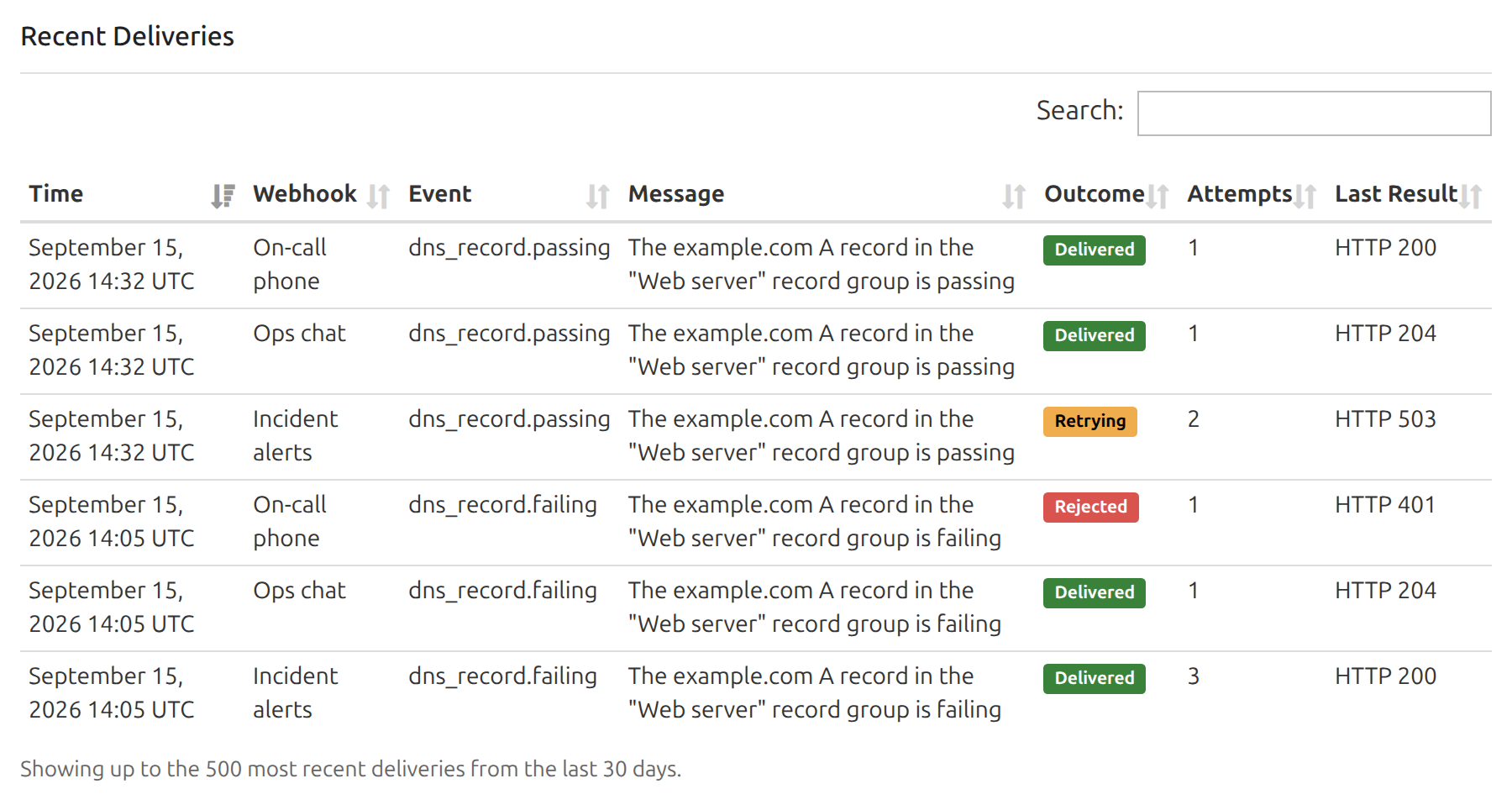
Outcomes
| Outcome | Meaning |
|---|---|
| Delivered | Your endpoint responded with a 2xx status code. |
| Queued | The delivery hasn't been attempted yet. It's usually sent within seconds, or about 2 minutes later if the webhook's previous delivery got no response. |
| Retrying | The latest attempt failed, and we'll try again. The Last result column says why the attempt failed. |
| Gave up | Every attempt over 24 hours failed. The Last result column shows the final failure. |
| Rejected | Your endpoint responded with a status code that isn't retried, so we stopped after that attempt. The Last result column shows the code. |
| Blocked | The webhook's hostname resolved to a private or other non-public IP address, so nothing was sent. The Last result column shows the address. |
| Webhook disabled | The webhook was disabled before this delivery succeeded, so we stopped trying. Enabling the webhook doesn't resend it. |
| Test failed | A test event's only attempt failed. The Last result column says why. |
Last Results
The Last result column shows what the latest attempt returned. An HTTP 2xx result means the delivery succeeded. Anything else points to a problem to check:
| Last result | What to check |
|---|---|
| HTTP 3xx: redirect not followed | The endpoint redirected the request. Check the URL for a missing or extra trailing slash, http redirecting to https, or a changed path, and enter the final URL. See Responding to a Delivery. |
| HTTP 400 | The endpoint didn't accept the payload. Check that the payload format and message key match what the endpoint expects, and, if your endpoint verifies signatures, that it uses the raw body. |
| HTTP 401 or HTTP 403 | The endpoint rejected the credentials. Check the custom header or the token in the URL, and that your endpoint has the current signing secret. |
| HTTP 404 or HTTP 410 | The URL doesn't exist, or has been removed, as happens when the webhook is deleted in the chat app. Check the URL, or delete the webhook in DNS Check. |
| HTTP 429 or HTTP 5xx | The endpoint is rate limiting requests or having trouble of its own. We retry, so this often clears up on its own. If it doesn't, check the endpoint's logs. |
| Host not found | The URL's hostname doesn't resolve. Check it for typos, and that its DNS records exist. |
| Connection timed out | Nothing answered within 3 seconds. Check that the endpoint is running, and that its firewall allows our IP addresses. |
| Connection refused | The server is reachable, but nothing is listening on the port. Check that the endpoint is running, and that the URL has the right port (443 unless you've specified one). |
| Host unreachable | No network route to the host. Check the host's IP addresses and your network's routing and firewall. |
| TLS error (for example, an expired or self-signed certificate) | The HTTPS connection couldn't be verified. Check that the certificate is valid and unexpired, matches the hostname, is issued by a public certificate authority rather than self-signed, and that the server sends its full certificate chain. |
| No response before the timeout | The endpoint accepted the connection but didn't respond within 15 seconds. Respond first and do slow work afterwards. It may still have processed the delivery, so expect a duplicate when it's retried. |
| Connection closed before a response | The endpoint or something in front of it, such as a proxy or load balancer, closed the connection without responding. Check their logs. |
| Host resolves to address | The hostname resolves to that private, loopback, or other non-public IP address, so nothing was sent. Use a URL that's reachable from the Internet, and check the host's DNS records if you expected a public address. |
| Request failed | Any other error. If it keeps happening, contact us. |

Protect your DNS infrastructure with automated monitoring
Get notified immediately when DNS records change. Start monitoring your critical DNS infrastructure for free in under 5 minutes.
No credit card required • Cancel anytime