
An HTTPS record is a DNS record that tells clients how to reach a web service over HTTPS, including the transport parameters they need to connect, such as the supported protocols, port, and address hints. Browsers can use it to upgrade to HTTPS immediately, to enable HTTP/2 and HTTP/3, and to fetch Encrypted ClientHello configuration, all before opening a connection. A domain name can have multiple HTTPS records.
HTTPS records are the HTTPS-specific instantiation of the SVCB record (Service Binding record) and share the same format. Both are defined in RFC 9460. Where an SVCB record needs a prefixed owner name to indicate the service and scheme, an HTTPS record is queried directly at the service's own name (for example, example.com or www.example.com).
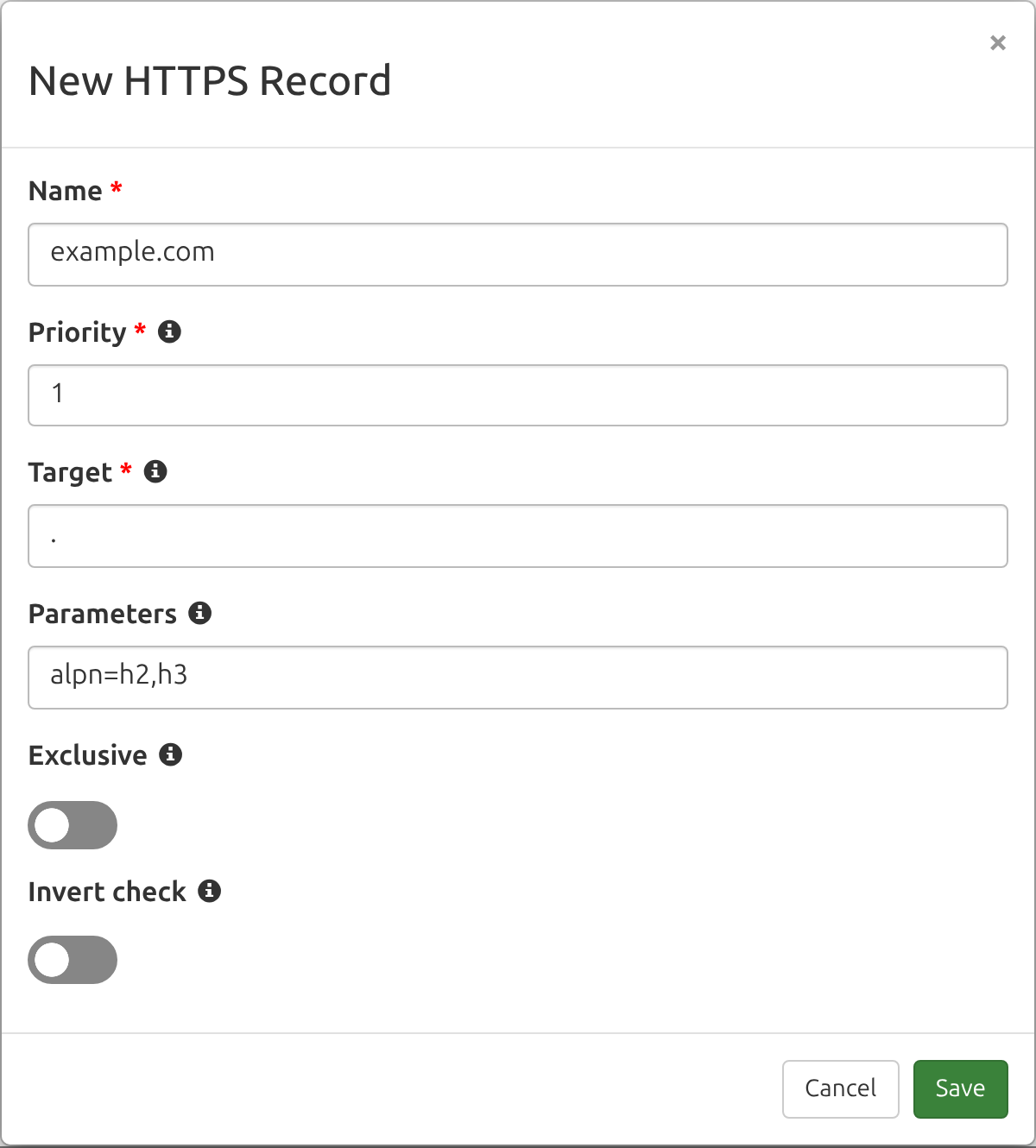
DNS Check can monitor your HTTPS records and notify you if they become unresolvable, or if their values change. For example, the following screenshot shows how to create an HTTPS record monitor that requires example.com to advertise HTTP/2 and HTTP/3 support:
Fields
Here are the fields that make up an HTTPS record:
| Field | Description | Example |
|---|---|---|
| Name | A fully qualified domain name (FQDN). | example.com. |
| Type | The DNS record type. Always set to "HTTPS". | HTTPS |
| Priority | The SvcPriority, an unsigned 16-bit integer. A value of 0 is AliasMode: the Target names another endpoint and no parameters are present. A non-zero value is ServiceMode, where the parameters describe how to reach the endpoint. Lower non-zero values are preferred. | 1 |
| Target | The TargetName: the domain name of the endpoint serving the site. A single dot (.) means the service is at the owner name itself. |
. |
| Parameters | The SvcParams: zero or more key=value pairs describing the endpoint. See the next section for the ones that appear on HTTPS records, or the SVCB record page for the full registry. Present only in ServiceMode. |
alpn=h2,h3 port=443 |
Parameters You'll See on HTTPS Records
HTTPS and SVCB records draw their parameters from the same registry, but only a handful of them show up on real websites:
| Key | Description | Example Value |
|---|---|---|
| alpn | Which HTTP versions the endpoint supports, as a comma-separated list: h2 for HTTP/2 and h3 for HTTP/3. This is how a browser learns it can open an HTTP/3 connection without first connecting over an older version and being told to upgrade. |
h2,h3 |
| no-default-alpn | Entered as a bare key with no value. It says the scheme's default protocol (HTTP/1.1 over TLS) is not supported, so only the versions in alpn will work. | (no value) |
| port | The port the site is served on. It's omitted for the usual case of port 443. | 8443 |
| ipv4hint / ipv6hint | Address hints a client can start connecting to right away, instead of waiting on separate A and AAAA lookups. They're an optimization, not a replacement for those records. | 192.0.2.1 |
| ech | The Encrypted ClientHello configuration, in Base64. It lets a client encrypt the server name in its TLS handshake, so a network observer can't see which site on a shared IP address is being visited. Defined in RFC 9848. | AEX+DQBBnAAg...AAA= |
The ech example above is abbreviated so it fits in the table. A real ech value is a few hundred characters long, and it has to be entered in full, exactly as your provider publishes it.
The SVCB record page lists every parameter DNS Check accepts, along with the keyNNNNN form for keys that have no mnemonic yet.
Looking Up an HTTPS Record
You can look up HTTPS records yourself with the dig command:
dig +short dnscheck.co HTTPS
That returns the record as a priority, a target, and a list of parameters:
1 . alpn="h2" ipv4hint=104.26.2.5,104.26.3.5,172.67.68.225 ipv6hint=2606:4700:20::681a:205,2606:4700:20::681a:305,2606:4700:20::ac43:44e1
Reading that record: a Priority of 1 (ServiceMode), a Target of . meaning the site is served at dnscheck.co itself, HTTP/2 support, and address hints a browser can connect to without waiting for the A and AAAA lookups to finish. To monitor it in DNS Check, those three parts go into the Priority, Target, and Parameters fields. The quotes that dig prints around a value can be pasted in as they are.
Running that command without +short prints the record inside a block of ;-prefixed comment lines, which is valid zone file syntax, so the whole output can be pasted straight into DNS Check's zone file import.
AliasMode and the Zone Apex
A CNAME record can't be used at a domain's apex (the "naked" domain, such as example.com with no subdomain), because a CNAME can't coexist with the SOA and NS records that have to be there. That restriction is why ALIAS records exist, and why so many sites are only reachable at www.
An AliasMode HTTPS record provides CNAME-like indirection that is allowed at the apex. It uses a priority of 0, names another host as its Target, and carries no parameters:
example.com. HTTPS 0 cdn.example.net.
A client that supports HTTPS records resolves example.com by following that alias to cdn.example.net and using whatever records it publishes, without the origin having to track the CDN's addresses.
Only clients that query the HTTPS record type follow the alias. Everything else, including older browsers and most non-browser software, still resolves the apex through its A and AAAA records, so those still have to be correct. An AliasMode HTTPS record complements an ALIAS record at the apex rather than replacing it.
HTTPS Records for Non-Default Ports
An HTTPS record for a site on port 443 lives at the site's own name, with no prefix. For any other port, the record moves to a name that includes the port and the scheme as underscore-prefixed labels (RFC 9460, Section 9.1). A site served at https://example.com:8443 publishes its record at:
_8443._https.example.com. HTTPS 1 . alpn=h2 port=8443
When monitoring a record at a prefixed name, that full prefixed name is what goes in DNS Check's Name field. Entering the bare example.com would check a different record, and most likely find nothing at all.
How Clients Use HTTPS Records
Major browsers query the HTTPS record type in parallel with the A and AAAA records, and use whatever comes back to shape the connection they open:
- Upgrading to HTTPS. Before making an
http://request, a client that finds an HTTPS record for the name switches tohttps://straight away, without the redirect round trip that would otherwise expose the first request in the clear. RFC 9460 describes this as behaving much like HSTS. - Choosing a protocol. An
alpnofh3lets a browser open an HTTP/3 connection immediately, rather than connecting over HTTP/2 and learning about HTTP/3 from an Alt-Svc header afterwards. - Connecting sooner. Address hints give a client something to connect to while the A and AAAA answers are still in flight.
- Encrypting the handshake. The
echparameter carries the configuration a client needs for Encrypted ClientHello, which is how it obtains those keys before the connection starts.
Support arrived over several years, and what a browser does with the record still varies:
- Safari has queried HTTPS records since iOS 14 (September 2020) and macOS 11 Big Sur (November 2020), along with every other app on those systems that connects through URLSession or Network.framework.
- Firefox turned them on by default in Firefox 92 (September 2021), for both the HTTPS upgrade and Alt-Svc style connection setup. Until Firefox 129 (August 2024) the lookup needed DNS over HTTPS; that release added the operating system's own resolver on Windows 11, Linux, and Android 10 and later.
- Chrome started upgrading
http://requests to HTTPS from these records in Chrome 102 (May 2022), and started usingalpn=h3to open an HTTP/3 connection directly in Chrome 118 (October 2023). Edge and other Chromium-based browsers inherit both.
Browsers older than those versions ignore the HTTPS record and connect using the A and AAAA records instead, so publishing an HTTPS record doesn't put existing clients at risk.
What Goes Wrong When an HTTPS Record Changes
The reason to monitor an HTTPS record is that most of the ways it can break are invisible from a browser. The page still loads, so nothing looks wrong:
- A dropped
h3fromalpnsilently moves traffic back to HTTP/2. - A stale or truncated
echvalue causes handshake retries or outright failures for clients that try to use it. - An
ipv4hintoripv6hintpointing at a decommissioned address makes connections slow while clients time out and fall back. - The record disappearing entirely, which is easy to do when a CDN configuration is changed, quietly reverts every client to plain A and AAAA behavior.
Since most HTTPS records are published on your behalf by a CDN or DNS host rather than typed by hand, a change usually arrives without any announcement. Monitoring the record is how you find out.
How DNS Check Stores and Compares HTTPS Records
RFC 9460 defines a canonical presentation form for these records, and DNS Check rewrites both what you enter and what your name servers return into that form, so the two can be compared as plain text. The parameters are sorted by their registry key number, quoting is removed, keys are lowercased, a relative Target is made absolute, and IPv6 hints are normalized.
Entering port=443 alpn="h2,h3" therefore stores alpn=h2,h3 port=443, so the record you see may not be character-for-character what you typed. The SVCB record page covers the rules and the validation messages in full.
When a check runs, the Priority and Target are compared case-insensitively, as domain names are elsewhere in DNS Check, while the Parameters are compared exactly, because ech carries Base64 where letter case is significant. Leaving the Parameters field empty is itself a check: it requires the record to have no parameters at all.
Monitoring with Wildcards
You can use an asterisk (*) as a wildcard for the Priority, the Target, the Parameters, or any combination of them. Each field is matched independently, so any combination of wildcarded and exact fields works. Here are some examples:
| Priority | Target | Parameters | Passes When |
|---|---|---|---|
1 |
. |
* |
A record exists with that Priority and Target, whatever parameters it carries, including none at all. |
* |
. |
alpn=h2,h3 |
A record has that Target and those exact parameters, regardless of its Priority. |
1 |
* |
alpn=h2,h3 |
A record has that Priority and those exact parameters, whichever endpoint it names as its Target. |
* |
* |
* |
Any HTTPS record exists for the Name. |
A wildcard on the Parameters is the right choice when part of the value rotates on its own. Encrypted ClientHello is the common case: providers that publish an ech parameter rotate the keys in it on their own schedule, and a check pinned to the exact parameters fails every time they do, even though nothing is wrong. Monitoring the Priority and Target exactly with * for the Parameters still catches the record being removed or repointed. The same applies to a CDN that adjusts its address hints as its network changes.
By default, a wildcard check passes as long as at least one returned HTTPS record matches, even if the Name has other HTTPS records too. If you enable the Exclusive option, the full set of returned records must correspond one-to-one with the records you monitor. A single wildcard, such as Priority 1, Target ., and Parameters *, then passes only when exactly one HTTPS record is returned, and it has that Priority and Target. To exactly match a Name that publishes several HTTPS records, add a monitored record (wildcard or specific) for each one.
Our Wildcard DNS Records page covers wildcards across every record type, along with wildcard record names like *.example.com.
DNS Zone File Examples
Here's an example of how HTTPS records look in a DNS zone file:
; Name                     Type   Priority  Target  Parameters
example.com.               HTTPS  1         .       alpn=h2,h3 ipv4hint=192.0.2.1
www.example.com.           HTTPS  1         .       alpn=h2,h3
_8443._https.example.com.  HTTPS  1         .       alpn=h2 port=8443
All three records are in ServiceMode (a non-zero priority) with a Target of ., meaning the service is at the owner name itself. They advertise support for HTTP/2 and HTTP/3, the first record includes an IPv4 address hint, and the third covers the same site served on port 8443.
Alternatively, you can create HTTPS records that are relative to the zone file's $ORIGIN. Here's an example of how to do this to create DNS records that are equivalent to what's shown in the previous example:
$ORIGIN example.com.
; Name        Type   Priority  Target  Parameters
@             HTTPS  1         .       alpn=h2,h3 ipv4hint=192.0.2.1
www           HTTPS  1         .       alpn=h2,h3
_8443._https  HTTPS  1         .       alpn=h2 port=8443
DNS Check can import and export zone files containing HTTPS records, including records that use wildcard values.
Troubleshooting
HTTPS is DNS record type 65 and SVCB is type 64. Both are new enough that some resolvers, firewalls, and home routers still mishandle answers for record types they don't recognize. A good first troubleshooting step, if you see behavior that could be explained by an HTTPS record not being seen, is to verify that the full technology stack supports the record type.
DNS Check and dig 9.18 and later both support checking HTTPS records (run dig -v to see your version). Here's an example dig invocation:
dig @chan.ns.cloudflare.com dnscheck.co HTTPS
That queries one of the authoritative name servers for dnscheck.co, which publishes an HTTPS record, so an empty answer points at your copy of dig or the network in between rather than at the record. Once it returns the record, swap in your own name and name server.
Not every DNS hosting provider supports publishing HTTPS records yet, and providers that publish them for you may not let you edit the parameters.
See troubleshooting DNS records for more ideas.
Additional Resources
- RFC 9460 - this RFC defines HTTPS and SVCB records. Section 9 covers the HTTPS-specific behavior, including query names and the HSTS-like upgrade to HTTPS.
- RFC 9848 - this RFC defines the ech parameter that carries Encrypted ClientHello configuration.
- Speeding up HTTPS and HTTP/3 negotiation with DNS - a plain-language introduction to what HTTPS records do for browsers.
- IANA Service Binding (SVCB) Parameter Registry - the registry of standardized SvcParamKeys, which HTTPS records share.

Protect your DNS infrastructure with automated monitoring
Get notified immediately when DNS records change. Start monitoring your critical DNS infrastructure for free in under 5 minutes.
No credit card required • Cancel anytime